

Avast Antivirus is a popular choice for protecting computers from malware and other online threats. While it does an excellent job of keeping your system secure, the frequent pop-ups, notifications, and sales pitches can become a significant annoyance. These interruptions can disrupt your workflow, interfere with entertainment, and generally create a frustrating user experience.
Fortunately, you don’t have to put up with these constant alerts. By adjusting a few settings within the Avast application, you can regain control of your desktop and enjoy a quieter, more focused computing environment. This guide on how to stop avast popups will walk you through the process of disabling these pop-ups, allowing you to benefit from Avast’s protection without the distractions.
Understanding Avast Popups
Avast pop-ups are notification windows that appear on your screen, originating from the Avast Antivirus software. These alerts serve several purposes. Some are genuinely helpful, informing you about detected threats, completed scans, or necessary software updates. However, many others are marketing-focused, designed to upsell you to premium versions of the software, promote other Avast products, or highlight features you are not currently using.
These promotional pop-ups occur because the free version of Avast is supported, in part, by encouraging users to upgrade. The company uses these notifications as a direct marketing channel to communicate offers, discounts, and the benefits of its paid services. While this is a common business practice for freemium software, the frequency and intrusiveness of these messages can disrupt your user experience and lead to “alert fatigue,” where you might start ignoring important security warnings along with the ads.
6 Simple Step-By-Step Guidelines on How to Stop Avast Popups
Step 1: Activate Silent Mode for Immediate Relief
One of the quickest ways to stop all Avast notifications is by enabling Silent Mode. This feature is designed to provide an uninterrupted experience when you are using applications in full-screen, such as when gaming or watching movies. However, you can manually activate it anytime you want to suppress pop-ups, including security alerts, system notifications, and promotional messages. To turn it on, locate the Avast icon in your system tray, which is usually found in the bottom-right corner of your screen. Right-click the icon to open a context menu.
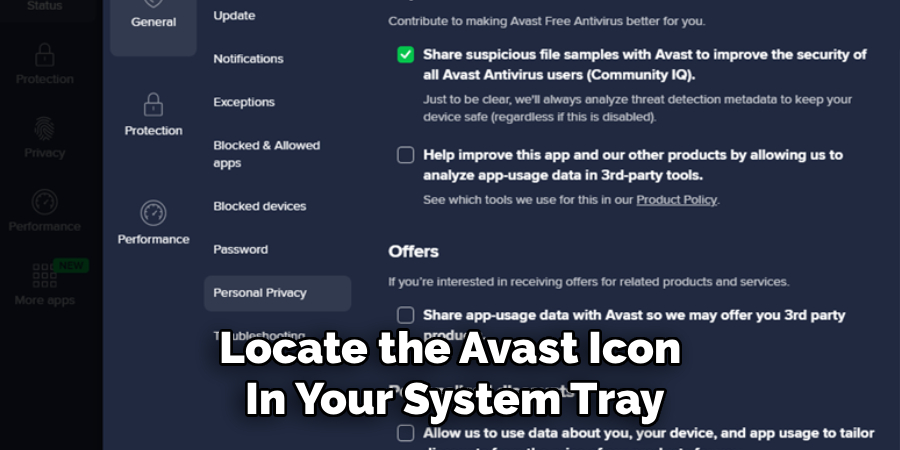
From this menu, you will see an option labeled “Silent Mode.” Clicking on it will activate the feature, and a checkmark will appear next to it, indicating that it is enabled. While active, Silent Mode will automatically silence all alerts from Avast. This is an excellent temporary solution for when you need to focus without any interruptions. Keep in mind that this will also hide potentially important security alerts, so it is best used for short periods. For a more permanent and selective solution, you will need to delve deeper into the application’s settings.
Step 2: Navigate to the Notification Settings
For more granular control over which pop-ups you see, you need to access the main notification settings within the Avast application. Start by opening the Avast user interface. You can do this by double-clicking the Avast shortcut on your desktop or by finding it in your Start menu. Once the main dashboard is open, look for the “Menu” option, typically located in the top-right corner of the window. Clicking on “Menu” will reveal a dropdown list of options.
From this list, select “Settings” to open the main configuration panel. This area contains all the customizable options for the Avast application. On the left side of the Settings window, you will see a navigation bar with several tabs. Click on the “Notifications” tab to access the specific controls for Avast’s alerts and pop-ups. This section is the central hub for managing how Avast communicates with you, and it is here that you can begin to tailor the experience to your preferences by disabling unwanted promotional content.
Step 3: Disable Pop-up Offers and Marketing Messages
Inside the Notifications settings, you will find several options related to the types of pop-up displays. The most important one for reducing marketing-related interruptions is related to offers for other products. Look for a checkbox with a label similar to “Show pop-up offers for other Avast products.” This setting directly controls the advertisements for services like Avast Cleanup Premium, Avast SecureLine VPN, and other tools in their software suite. By default, this option is usually enabled.
To stop these promotional ppop-ups simply uncheck this box. This single action will significantly reduce the number of ads you see. While you are in this section, you may also see other related options concerning community notifications or rating requests. It is generally a good idea to disable these as well to further minimize non-essential interruptions. Making this change ensures that Avast no longer uses its notification system to upsell you, allowing you to use the free version without the constant sales pitches.
Step 4: Manage Software Update Notifications
Another common source of pop-ups is the Software Updater feature. This tool scans your system for outdated applications and notifies you so you can install the latest versions, which is important for security. However, the free version of Avast will only notify you about updates; it requires a premium subscription to update them automatically. These notifications can become repetitive and serve as another pathway to an upgrade prompt. You can manage these alerts to make them less intrusive.
Within the Notifications settings, find the section related to the Software Updater. You might see an option to disable notifications for it entirely. Alternatively, look under the “Pop-up notifications” section and find the duration settings. You can often change how long these pop-ups appear on screen. By setting the duration to “0” seconds, the notification will technically still be generated, but it will close immediately, effectively preventing it from appearing on your screen. This allows you to keep the updater feature active without being bothered by its popups.
Step 5: Adjust Community Content and Smart Scan Alerts
Avast often includes community-based content and rewards in its notifications, which are not essential for your computer’s security. These pop-ups can inform you about your “Avast expert” status or other gamified achievements designed to increase user engagement. To disable these, go back to the “Menu” and then “Settings,” and navigate to the “Personal Privacy” tab. Here, you will find options related to data sharing and community participation.
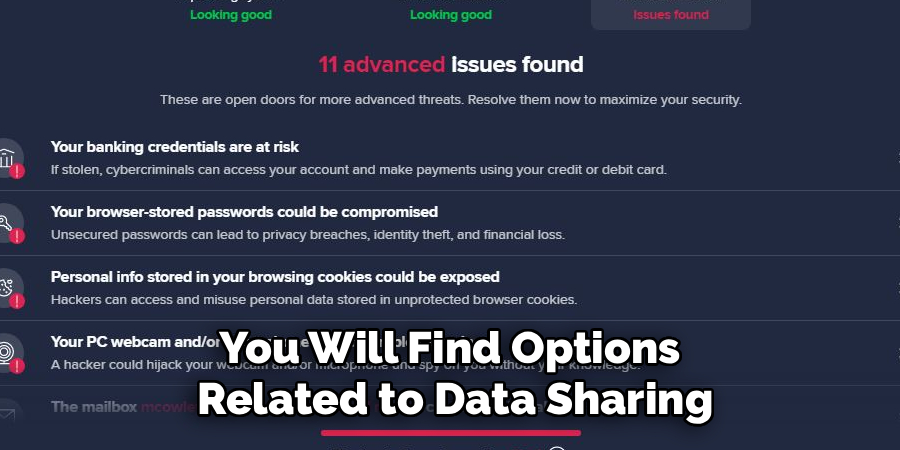
Look for checkboxes that mention showing rewards and community content. Unchecking these will prevent Avast from sending you pop-ups related to your status within the Avast user community. Additionally, the Smart Scan feature often concludes with a results screen that highlights “advanced issues,” which can only be resolved by upgrading. While you cannot disable this screen entirely, you can avoid running Smart Scans and instead use the more specific “Virus Scans” to check for threats without triggering the upsell page.
Step 6: Update Avast and Restart Your Computer
After you have made all the desired changes to your notification and privacy settings, it is a good practice to ensure your Avast application is fully updated. An outdated client might not apply your new settings correctly or could revert them after an update. Go to “Menu” > “Settings” > “General” > “Update.” Here, you can check for and install the latest version of the virus definitions and the application itself. Keeping your antivirus software current is crucial for both security and functionality.
Once Avast is updated and all your settings have been saved, perform a full restart of your computer. This ensures that all the changes you have implemented are correctly loaded and applied by the system and the Avast software. A reboot clears any temporary configurations and forces Avast to start fresh with your new preferences. After restarting, you should notice a significant reduction, if not a complete elimination, of the unwanted promotional pop-ups, leaving you with a much cleaner and quieter user experience.
Following these steps on how to stop avast popups will not only help improve your user experience but also ensure that your device is well-protected from potential threats. Additionally, it is important to regularly update your Avast software to ensure that you have the latest security features and protection against new viruses and malware.
Common Issues and Troubleshooting
Sometimes, pop-ups may continue to appear even after changing the settings. If this happens, double-check that your changes were saved correctly. A common issue is that a major Avast update has reset your custom settings to default.
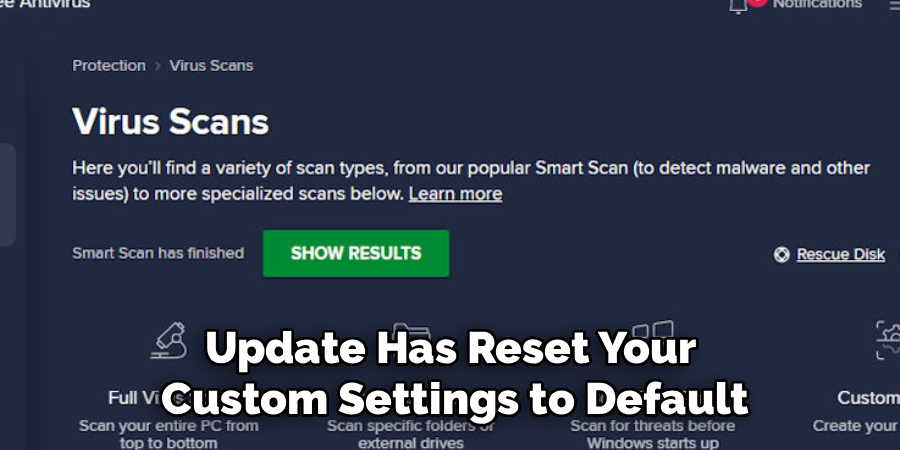
Simply go back through the notification and privacy settings to disable the pop-ups again. If Silent Mode turns itself off, make sure no other application is conflicting with Avast’s full-screen detection.
Privacy and Legal Considerations
When you use free software like Avast, you often pay with your data. In the “Personal Privacy” settings, you will find options that allow Avast to share your data with third parties for analytics and marketing purposes.
It is highly recommended that you review this section carefully and uncheck all boxes related to data sharing to protect your privacy. While disabling pop-ups is a user preference, opting out of data sharing is a critical step in controlling how your personal information is used by the company.
Frequently Asked Questions
Q1: How Do I Disable Avast Notifications Temporarily?
A1: The easiest way to temporarily disable all Avast notifications is by using Silent Mode. Right-click the Avast icon in your system tray at the bottom-right of your screen and select “Silent Mode” from the menu. This will suppress all popups and alerts, including security warnings, until you turn it off again. This is ideal for gaming, presentations, or watching movies without interruption.
Q2: Will Stopping Popups Make My Computer Less Secure?
A2: No, disabling promotional and non-essential pop-ups will not compromise your computer’s security. Avast will continue to run in the background, actively protecting you from malware, viruses, and other threats. You are simply turning off the marketing messages and non-critical alerts. Important security notifications, such as when a threat is detected and blocked, will still be logged within the application’s notification center.
Q3: Why Do I Still See Some Popups After Changing My Settings?
A3: If you still see certain pop-ups, it may be because they are classified as critical security alerts, which cannot be disabled. For example, a notification about an expired virus definition database is essential for your protection. Additionally, major program updates can sometimes reset your custom settings. It is a good idea to revisit the notification settings after an update to ensure your preferences are still in place.
Conclusion
While Avast provides robust protection against digital threats, its constant stream of pop-ups can be a major drawback.
By following the steps outlined in this guide on how to stop avast popups, you can take control of the application’s notification system and create a more pleasant user experience. Activating Silent Mode, customizing your notification settings, and managing privacy options are simple yet effective ways to eliminate unwanted marketing messages.
This allows you to enjoy the full security benefits of Avast without the disruptive and persistent interruptions.

About
Josh Stone is a distinguished figure in the world of software engineering and digital architecture, with a decade of expertise creating innovative and scalable software solutions. His professional focus lies in merging legacy system stability with modern agile development, fostering applications that are both high-performing and user-centric. As an authoritative voice in the tech space, Josh Stone delves into the art and science of clean code and systems design, inspiring developers and industry leaders alike.
Education
RMIT University (Melbourne, Australia) Associate Degree in Software Development Focus on sustainable codebases, industry-driven projects, and practical programming. Gained hands-on experience with full-stack frameworks, database management, and cloud infrastructure.
Nottingham Trent University (United Kingdom) Bachelor’s in Computer Science and Systems Design (Honors) Specialized in software architecture with a focus on blending creative UI/UX with robust backend production techniques. Participated in high-level industry projects, collaborating with global tech firms to gain real-world insights into enterprise-level deployment.
Publications and Impact
In his technical writings, Josh Stone shares his insights on agile design processes, emerging languages, and strategies for efficient DevOps. His work bridges the gap between theoretical computer science and modern industry needs, making it a must-read for both budding programmers and seasoned software architects.