

Missing an important call from a potential employer, a family member, or a business client can be incredibly stressful, especially when you have no way of knowing what they wanted. Voicemail acts as your digital safety net, capturing crucial messages when you are busy, in a meeting, or simply away from your phone, ensuring you stay connected even when you can’t answer.

Setting up this feature on your Android device is a fundamental step in managing your communication effectively, yet many users leave it unconfigured and miss out on its benefits. By taking a few minutes to establish your personalized greeting and security settings, you transform your smartphone into a more reliable tool that works for you around the clock. In this guide on how to setup a voicemail on android, we’ll walk you through the steps to get started.
Tools and Materials You’ll Need
To successfully set up your voicemail on Android, you’ll need the following tools and materials:
- An Android smartphone
- A valid phone number with an active SIM card
- Access to a stable internet connection or cellular data network
7 Simple Step-by-step Guidelines on How to Setup a Voicemail on Android
Step 1: Open the Phone App and Access Voicemail Settings
The journey to setting up your voicemail begins by locating the phone icon on your home screen or app drawer, which is the gateway to your dialer and call settings. Once you have opened the app, you need to look for the keypad icon, which is usually located at the bottom of the screen.
On this keypad, press and hold the number “1” key for a few seconds. This is a universal shortcut programmed into almost every mobile device that automatically dials your carrier’s voicemail access number. Alternatively, if pressing “1” does not work immediately, you may need to look for the three-dot menu icon in the top right corner of the app, select “Settings,” and navigate to the “Voicemail” section manually to find the setup options.
If the automatic dialer connects you, you will hear an automated voice prompt guiding you through the initial initialization process, which confirms that your service is active and ready for configuration. It is crucial to listen carefully to these initial prompts because they often differ slightly depending on your specific mobile carrier.
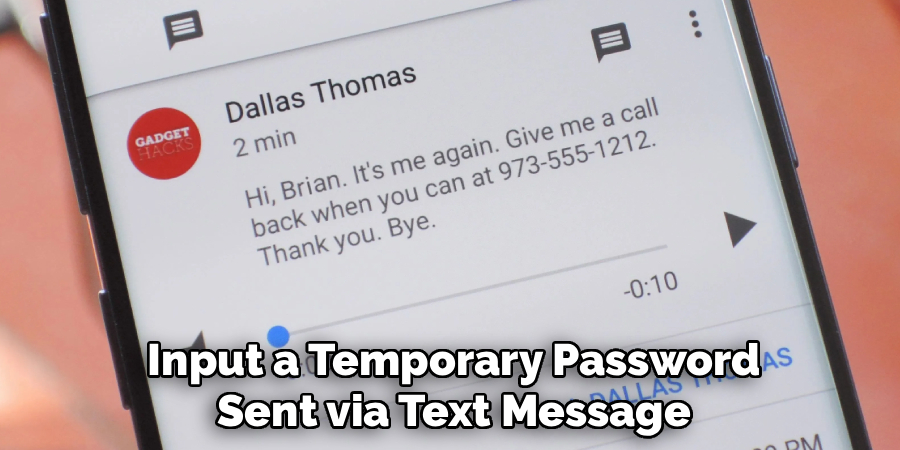
Some carriers might ask you to input a temporary password sent via text message before you can proceed further. If the call fails or says the number is invalid, this is usually an indicator that the voicemail service hasn’t been properly provisioned on your account yet, and you may need to contact your service provider’s customer support line to have them activate the feature on their end before you can continue with the setup on your phone.
Step 2: Create a Strong and Memorable Password
Security is a paramount concern when setting up your voicemail because your inbox can often contain sensitive personal information, medical results, or financial details left by callers. Once you have accessed the voicemail system, the automated guide will prompt you to create a password or PIN code.
You should choose a sequence of numbers that is easy for you to remember but difficult for others to guess; avoid obvious choices like “1234,” “0000,” or the last four digits of your phone number. A strong PIN usually consists of four to six digits that have no direct correlation to your public information, ensuring that if someone steals your phone or tries to hack into your voicemail from another line, they remain locked out.
After you enter your desired PIN, the system will usually ask you to re-enter it for confirmation to ensure there were no typing errors during the first entry. Once the password is confirmed, you might be given the option to skip entering the password when calling from your own device. While this offers convenience, we strongly recommend keeping the password requirement active even for your own phone.
This adds an extra layer of security in case your physical device is lost or stolen, preventing unauthorized access to your private messages. Remember to write this PIN down in a secure location or save it in a password manager immediately, as resetting a forgotten voicemail password can be a tedious process involving customer service calls.
Step 3: Record Your Name for the System Directory
After securing your account with a password, the system will ask you to record your name. This is distinct from your main greeting; it is a short audio snippet used for the system’s directory or when the standard greeting is used. The automated voice will prompt you to speak your name clearly after the beep.
You should speak in a normal, conversational volume and try to enunciate clearly so that callers can easily verify they have reached the correct person. This recording is often used in the standard system message that says, “Please leave a message for [Your Name],” so making it sound professional is important.
If you are not happy with the first take, almost every system allows you to re-record as many times as necessary before saving. Do not rush this step; take a moment to clear your throat and ensure there is no distracting background noise like traffic or television.
Once you are satisfied with the recording, you will typically press the pound key (#) or a specific number to save it. This name recording helps personalize the experience even if you choose not to record a full custom greeting later, providing a basic level of confirmation to anyone trying to reach you. It is a small detail that adds a layer of professionalism and reassurance to the caller that they haven’t misdialed a digit.

Step 4: Choose Between Default and Custom Greetings
At this stage, the automated system will offer you a choice between using a standard, pre-recorded system greeting or creating a custom one of your own. The default greeting usually sounds robotic and impersonal, typically stating your phone number and asking the caller to leave a message. While this is functional, it lacks the personal touch that friends, family, or business associates appreciate. We highly recommend opting to record a custom greeting, as it allows you to provide specific information, such as when you might return the call or alternative ways to contact you if the matter is urgent.
If you choose to stick with the default greeting, you can usually press a specific key to select it and move on to the next step. However, if you decide to customize, the system will guide you to the recording phase. Before you press record, take a moment to script what you want to say in your head or on a piece of paper.
A good custom greeting is concise, friendly, and informative. It lets the caller know they have reached the right person and manages their expectations regarding your response time. Choosing the custom option puts you in control of your personal brand and communication style, making your voicemail an extension of your professional or personal persona rather than just a generic storage box for audio files.
Step 5: Record Your Personal Custom Greeting
Now that you have selected the custom greeting option, it is time to record the message that your callers will hear. Wait for the beep, and then speak clearly and steadily into your phone’s microphone. A standard professional script might be: “Hi, you’ve reached [Your Name]. I can’t come to the phone right now, but please leave your name, number, and a brief message, and I’ll get back to you as soon as possible.”
Keep the message under 20 or 30 seconds to respect your caller’s time. Ensure you are in a quiet room to avoid capturing wind noise, echoes, or other people talking, which can make your greeting sound unprofessional or difficult to understand.
After you finish speaking, press the indicated key (usually #) to stop recording. The system will then play your recording back to you so you can review it for quality and clarity. Listen critically—did you stumble over a word? Was there a loud truck driving by in the background? If it isn’t perfect, most systems allow you to press a button to discard the current attempt and try again.
Don’t settle for a mediocre recording; this is often the first impression people get when they can’t reach you directly. Once you have a version you are happy with, follow the prompts to save it as your active greeting. Your callers will now hear your voice whenever you are unavailable, which creates a much more welcoming experience.
Step 6: Configure Notification Settings
Once the core voicemail system is set up, you need to ensure your Android phone actually alerts you when a new message arrives. Without proper notifications, your voicemail inbox becomes a black hole where messages sit unheard for days or weeks. Navigate to your Phone app settings, look for “Voicemail,” and then find the “Notifications” section.
Here, you can customize how your phone behaves when a voicemail is left. You can choose to have an icon appear in the status bar, play a specific sound, or vibrate. It is important to select a notification sound that is distinct from your text message or email alerts, so you instantly know when a voicemail is waiting.

In addition to basic alerts, many modern Android phones and carrier services offer “Visual Voicemail.” If your carrier supports this, you should enable it in these settings. Visual voicemail allows you to see a list of your messages like emails, rather than having to call a number and listen to robot menus.
You can see who called, how long the message is, and often read a text transcription of the audio. If this feature is available to you, toggle it on. It drastically improves the user experience, saving you time and making it much easier to prioritize which messages to listen to first and which ones can be deleted immediately without listening.
Step 7: Test Your Voicemail Setup
The final and arguably most critical step is to verify that everything you have just configured is working correctly in a real-world scenario. Do not just assume the settings took effect; technology can glitch, and carrier signals can drop during setup. The best way to test this is to use a different phone—perhaps a landline, a friend’s mobile, or a work phone—to call your number. Let it ring until it goes to voicemail. Listen to the greeting carefully to ensure it is the one you recorded, that the volume is appropriate, and that the audio is clear.
After the beep, leave a test message for yourself. Speak for a few seconds, then hang up. Now, look at your Android phone. Did the notification icon appear promptly? Did you receive the specific sound or vibration you selected? Tap the notification to access the voicemail. If you have visual voicemail, check if the message appears in the list.
If you are using standard voicemail, dial “1” and enter your password to ensure you can access and listen to the message you just left. If everything works as expected, you can be confident that you won’t miss important communications. If any part of the process failed, retrace your steps or contact your carrier for assistance.
Following these steps on how to setup a voicemail on android can help you stay connected with important messages and calls even when you are unable to answer your phone. It is also a helpful feature for those who may have difficulty answering or making calls due to physical limitations.
Safety Tips
When setting up your voicemail, safeguarding your privacy is just as important as the functionality itself. Avoid including sensitive personal details in your greeting, such as your home address, explicit details about your vacation dates, or stating that you are “home alone.” Criminals can sometimes use this information to target empty homes.
Furthermore, it is vital to change your PIN regularly, perhaps every few months, to prevent unauthorized access. Never use sequential numbers or your birth year as your password, as these are the first combinations hackers will try. If you lose your phone, contact your carrier immediately to reset the voicemail password or disable the service remotely to ensure your private messages remain secure.
Common Mistakes to Avoid
A frequent error users make is recording a greeting that is far too long or overly humorous, which can frustrate callers who are in a hurry or calling for serious business matters. Another mistake is forgetting to check the voicemail number stored in the settings; sometimes updates or phone switches can reset this to an incorrect access number.
Users also often neglect to empty their voicemail inbox, leading to a “mailbox full” message that prevents new callers from leaving messages. Finally, relying solely on the default password is a major security risk that leaves your personal information vulnerable to anyone who knows how to spoof a caller ID.

Do You Need To Use Professionals?
For the vast majority of Android users, hiring a professional to set up voicemail is completely unnecessary and would be a waste of resources. The process is designed by manufacturers and carriers to be user-friendly and intuitive, requiring no technical coding skills or specialized equipment. The automated prompts guide you through every single step, and troubleshooting information is widely available online for free.
However, there are rare exceptions where professional help might be warranted. If you are setting up a complex business phone system that integrates mobile voicemail with an office PBX system, or if you require professional voice-over talent for a corporate brand greeting, you might need outside assistance.
Additionally, for users with significant accessibility challenges or those who are extremely uncomfortable with technology, asking a knowledgeable friend or a store representative at your mobile carrier’s retail location for help is a good idea. But for a standard personal setup, you are fully capable of doing it yourself.
Frequently Asked Questions
Q1: How Do I Access My Voicemail If I Don’t Have My Phone?
Accessing your voicemail from a different phone is a handy feature for when your battery dies or you leave your device at home. To do this, simply call your own mobile number from any other phone.
When you hear your greeting start to play, press the star (*) or pound (#) key—this trigger varies by carrier, so check with your specific provider beforehand. The recording will stop, and you will be prompted to enter your voicemail PIN. Once you enter the correct code, you will have full access to your inbox and menu options just as if you were calling from your own device.
Q2: Why Is My Visual Voicemail Not Working On My Android?
Visual voicemail issues are often related to data connectivity or carrier provisioning rather than a hardware fault. First, ensure that your mobile data is turned on; visual voicemail often requires a cellular data connection and will not work over Wi-Fi alone on some networks. If data is on, check your phone app settings to make sure visual voicemail is toggled to “on.”
If it still fails, it is highly likely that your specific cellular plan does not include visual voicemail, or the feature needs to be reset on the carrier’s end. A quick call to customer support can usually resolve provisioning errors or confirm if your plan supports the feature.
Q3: How Can I Save Or Export Important Voicemails Forever?
Voicemail inboxes are not designed for permanent storage and often delete old messages automatically after a set period, usually 14 to 30 days. To save a voicemail forever, you need to export the audio file. If you have visual voicemail, open the message, tap the share or menu icon, and select “Save to device,” “Export to audio file,” or email it to yourself.
If you do not have visual voicemail, you can use a third-party recording app on a different device to record the audio while playing it on speakerphone, or use an auxiliary cable to record directly into a computer’s microphone input. This ensures you keep cherished memories or important legal information safe externally.
Conclusion
Setting up voicemail on your Android device is a straightforward yet vital task that bridges the gap between you and the world when you cannot be present. By following these seven detailed steps on how to setup a voicemail on android, from dialing the access number to configuring notifications, you ensure that you never miss a critical message. Avoiding common pitfalls and maintaining strong security practices will keep your inbox functional and safe.
Whether you use a standard setup or advanced visual voicemail features, taking control of this communication tool empowers you to manage your time and relationships more effectively. Don’t let your digital mailbox remain an afterthought; set it up today and enjoy the peace of mind that comes with reliable connectivity.
