

Whether you are a student working on a complex math problem, a scientist drafting a research paper, or a professional creating a technical report, proper formatting is essential for clarity and credibility. One of the most common formatting challenges is correctly displaying exponents, also known as superscript. Typing E=mc² or the volume of a cube as a³ seems simple, but finding the right menu option can be frustrating.
Many users get stuck searching through endless toolbars, not realizing that Google Docs offers several quick and easy methods for this task. The good news is that you do not need to be a tech wizard to master this. This guide will demystify the process and show you exactly how to put exponents on google docs, ensuring your documents look polished and professional every time. We will cover everything from menu commands to keyboard shortcuts, so you can choose the method that works best for you.
7 Step-by-Step Guide on How to Put Exponents on Google Docs
Step 1: Using the Top Menu Bar
The most straightforward method for creating an exponent is by using the main toolbar that runs along the top of your document. This approach is intuitive for beginners who are still getting familiar with the interface. First, type the base number or letter, followed immediately by the number you wish to turn into an exponent.
For example, to type x², you would type “x2”. Next, use your mouse to highlight only the “2”. With the character highlighted, navigate your cursor up to the top menu and click on “Format,” then “Text,” and finally select “Superscript.” The highlighted character will instantly be converted into a properly formatted exponent, raised and resized.
Step 2: Using the Keyboard Shortcut
For those who prefer to keep their hands on the keyboard for maximum efficiency, a simple shortcut is the fastest way to toggle superscript on and off. This method is a favorite among frequent users who need to type exponents regularly in their work. Similar to the first step, type your base and the character for the exponent.
Then, highlight the character you want to format. On a Windows PC or a Chromebook, press the “Ctrl” key and the period key (“.”) simultaneously. On a Mac, the shortcut is “Command” + period (“.”). This key combination will immediately apply the superscript format. To turn it off and return to normal text, simply press the same key combination again.
Step 3: Utilize the “Special Characters” Menu
Sometimes, you may need a specific, pre-formatted exponent like the squared (²) or cubed (³) symbol. Google Docs has a vast library of special characters that includes these common exponents. To access this library, place your cursor where you want the exponent to appear.
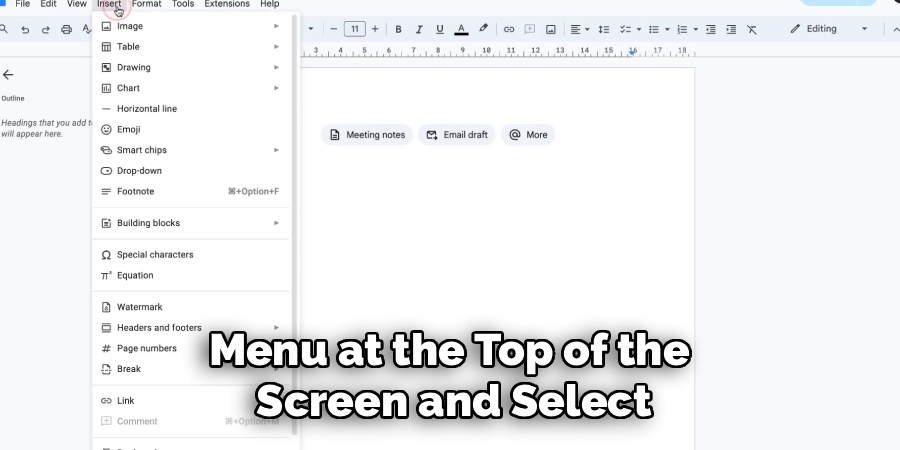
Go to the “Insert” menu at the top of the screen and select “Special characters.” A new window will pop up. In the search bar of this window, type “superscript” or “exponent.” You will see a list of available symbols. Simply click on the squared or cubed symbol to insert it directly into your document. This is a great method when you only need the most common powers and want a perfectly rendered symbol.
Step 4: Using the Equation Editor
For complex mathematical or scientific notation involving multiple exponents, fractions, and symbols, the built-in Equation Editor is the most powerful tool. It ensures all your mathematical expressions are formatted correctly and professionally. Place your cursor in the document, go to the “Insert” menu, and click on “Equation.”
A new blue box will appear, along with a new toolbar at the top of the screen. In this new toolbar, click on the “Math operations” button and select the “Xᵇ” option. This will create two placeholders, one for the base and one for the exponent. Type your base in the main box, press the right arrow key to move to the exponent box, and type your exponent there.
Step 5: Adjusting Font Size for Clarity
In some cases, the default superscript size might appear too small, especially if you are using a font with a delicate design or creating a presentation. After you have created your exponent using any of the previous methods, you can easily adjust its size for better readability. Simply highlight the exponent character by itself.
Then, use the font size tool in the main toolbar to increase the point size by one or two points. Be careful not to make it too large, as this can disrupt the visual balance of the text, but a small adjustment can often improve clarity without compromising the correct formatting.
Step 6: Create an Auto-Correct Substitution
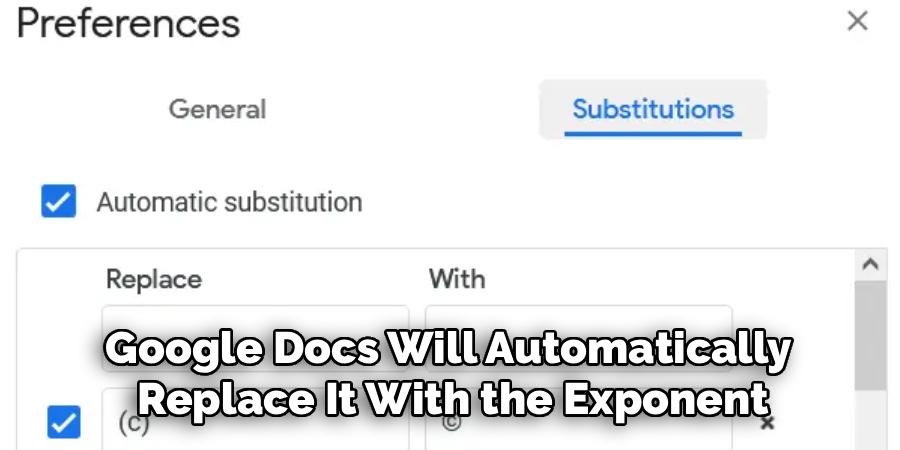
If you find yourself frequently typing the same exponents, like the squared or cubed symbols, you can set up a custom auto-correct rule to save time. This is a powerful productivity hack. Go to the “Tools” menu and select “Preferences.” Under the “Substitutions” tab, you will see two columns: “Replace” and “With.” In the “Replace” column, type a unique shortcut you will remember, such as “^2”. In the “With” column, paste the correctly formatted exponent character (you can get this from the Special Characters menu). Now, every time you type your shortcut followed by a space, Google Docs will automatically replace it with the exponent.
Step 7: How to Handle Subscripts
While learning about exponents (superscript), it is also useful to know how to create their counterpart: subscripts. Subscripts are characters that appear below the baseline, commonly used in chemical formulas like H₂O. The process is nearly identical to creating superscripts. You can highlight the character, go to “Format,” then “Text,” and select “Subscript.” The keyboard shortcut is also similar: “Ctrl” + comma (“,”) on Windows and “Command” + comma (“,”) on a Mac. This knowledge complements your formatting skills, allowing you to handle a wider range of scientific and mathematical notation within the same document.
Advanced Formatting Techniques
Beyond basic text styling, advanced formatting techniques can drastically enhance the readability and professionalism of your document. These include creating tables, using hyperlinks, inserting horizontal lines, and applying blockquotes or code snippets. For instance, tables allow you to organize data in a structured manner, while hyperlinks provide easy access to additional resources or references.
Horizontal lines can segment sections visually, making the document more navigable. Additionally, blockquotes are perfect for emphasizing important quotes or statements, and code snippets are essential for showcasing programming or technical content. Mastering these tools will enable you to craft documents that are both functional and visually appealing.
Frequently Asked Questions (FAQ)
How Do I Type an Exponent on a Chromebook?
Typing an exponent on a Chromebook is very easy and follows the same keyboard shortcut as a Windows PC.
- Type your base number and the exponent number (e.g., “x2”).
- Highlight the “2”.
- Press the Ctrl and period (.) keys at the same time.
The highlighted number will immediately become an exponent. You can press the same key combination again to turn the superscript formatting off.
Can I Put an Exponent in a Google Sheet Cell?
No, unfortunately, Google Sheets does not support superscript or subscript formatting within a single cell. While you can use the POWER function (e.g., =POWER(10,2)) to calculate a number raised to a power, you cannot visually format the text as an exponent like you can in Google Docs. The result of the formula will simply be the calculated value (e.g., 100).
How Do I Get Rid of an Exponent in Google Docs?
To remove the exponent formatting and return the character to normal text, you can reverse the process you used to create it.
- Highlight the exponent character.
- Go to Format > Text > Superscript to uncheck the option.
- Alternatively, use the keyboard shortcut again (Ctrl + . or Cmd + .) to toggle the formatting off.
What Is the Easiest Way to Type a Squared Symbol (²)?
For the common squared symbol, using the Special Characters menu is often the easiest route.
- Go to Insert > Special characters.
- In the search bar, type “superscript 2”.
- Click the “²” symbol that appears.
You can also set up an auto-correct substitution (like replacing “(^2)” with “²”) if you use it frequently.
Why Is My Exponent Shortcut Not Working?
If the keyboard shortcut isn’t working, there are a few things to check.
- Keyboard Language: Ensure your keyboard input language is set to standard English, as other language settings can remap keys.
- Browser Extensions: Sometimes, browser extensions can interfere with Google Docs shortcuts. Try disabling them to see if that resolves the issue.
- Correct Keys: Double-check that you are pressing the correct keys. For superscript, it’s the period key, not the comma key (which is for subscript).

Conclusion
Properly formatting your documents is a small detail that makes a big impact on their professionalism and readability. While it may seem like a minor hurdle, knowing how to handle exponents is a fundamental skill for anyone working with academic or technical content. From the simple menu command to the speedy keyboard shortcut and the powerful equation editor, Google Docs provides a variety of tools to fit any workflow.
By practicing these methods, you can move past the frustration of formatting and focus on the content of your work. We encourage you to open a document and try these techniques for yourself. Now that you have a clear understanding of how to put exponents on google docs, you can tackle any formula or equation with confidence.

About
Josh Stone is a distinguished figure in the world of software engineering and digital architecture, with a decade of expertise creating innovative and scalable software solutions. His professional focus lies in merging legacy system stability with modern agile development, fostering applications that are both high-performing and user-centric. As an authoritative voice in the tech space, Josh Stone delves into the art and science of clean code and systems design, inspiring developers and industry leaders alike.
Education
RMIT University (Melbourne, Australia) Associate Degree in Software Development Focus on sustainable codebases, industry-driven projects, and practical programming. Gained hands-on experience with full-stack frameworks, database management, and cloud infrastructure.
Nottingham Trent University (United Kingdom) Bachelor’s in Computer Science and Systems Design (Honors) Specialized in software architecture with a focus on blending creative UI/UX with robust backend production techniques. Participated in high-level industry projects, collaborating with global tech firms to gain real-world insights into enterprise-level deployment.
Publications and Impact
In his technical writings, Josh Stone shares his insights on agile design processes, emerging languages, and strategies for efficient DevOps. His work bridges the gap between theoretical computer science and modern industry needs, making it a must-read for both budding programmers and seasoned software architects.