
For many new users, switching to a Linux operating system can feel like learning a completely different language. The comfortable, click-heavy environment of Windows or macOS is replaced by a powerful, yet initially intimidating, terminal interface. Even a simple task like changing the name of a document can seem complex when you are staring at a blinking cursor instead of a right-click menu. However, mastering these basic operations is the gateway to unlocking the true potential of your system.
Renaming files is a fundamental skill that every Linux user, from novice to sysadmin, performs daily. Whether you are organizing your documents folder, managing server logs, or correcting a typo in a script, knowing the right commands makes you more efficient. This guide will strip away the confusion and walk you through exactly how to rename file linux using both the command line and graphical interfaces, proving that the terminal is not something to fear, but a tool to embrace.
7 Step-by-Step Guide on How to Rename File Linux
Step 1: Open Your Terminal or File Manager
The journey to file management mastery begins with accessing the right interface. If you are using a desktop environment like GNOME, KDE, or Ubuntu’s Unity, you have two primary options. You can use the graphical file manager, often called “Files,” “Nautilus,” or “Dolphin,” which behaves similarly to Windows Explorer. However, for true power and flexibility, you should open the terminal.
You can usually find this by pressing Ctrl+Alt+T or searching for “Terminal” in your applications menu. The terminal window is your direct line to the operating system’s kernel. While the graphical user interface is convenient for single files, the command line is where you will perform bulk actions and gain a deeper understanding of the system structure. Opening this black box is the first step toward efficiency.
Step 2: Navigate to the Correct Directory
Before you can modify a file, you must tell the system exactly where it is located. In the terminal, you are always “in” a specific folder, known as the working directory. Use the ls command (which stands for “list”) to see the files in your current location. If the file you want to change is in the “Documents” folder, you would use the cd (change directory) command followed by the folder name, like cd Documents.
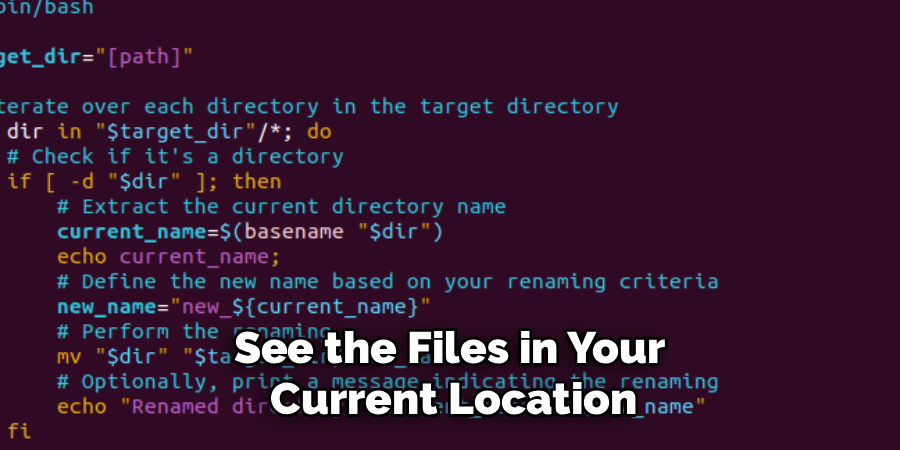
Verifying your location is critical because running commands in the wrong directory can lead to “file not found” errors or, worse, renaming the wrong item. Always double-check your path before executing any changes to ensure you are targeting the correct asset.
Step 3: The mv Command
The most common and fundamental way to change a filename in the terminal is using the mv command. While mv stands for “move,” it serves a dual purpose. When you move a file from one name to another within the same directory, the system interprets this as a rename operation.
The syntax is incredibly straightforward: you type mv, followed by the current filename, and then the desired new filename. For example, if you have a file named old.txt and want to call it new.txt, you would type mv old.txt new.txt. This command tells the Linux kernel to take the data associated with the first name and reassign it to the second name instantly, without actually moving the data on the disk.
Step 4: Handle Filenames with Spaces
One of the most common stumbling blocks for beginners is dealing with filenames that contain spaces. The terminal interprets a space as a separator between commands or arguments. If you try to rename a file called my photo.jpg without special handling, the system will think you are trying to reference two different files: my and photo.jpg.
To successfully process these files, you must use “escaping” techniques. You can enclose the entire filename in quotes, like “my photo.jpg”, or use a backslash before the space, like my\ photo.jpg. This signals to the shell that the space is part of the name itself, not a break in the command. Mastering this syntax is essential for error-free file manipulation.
Step 5: Batch Renaming
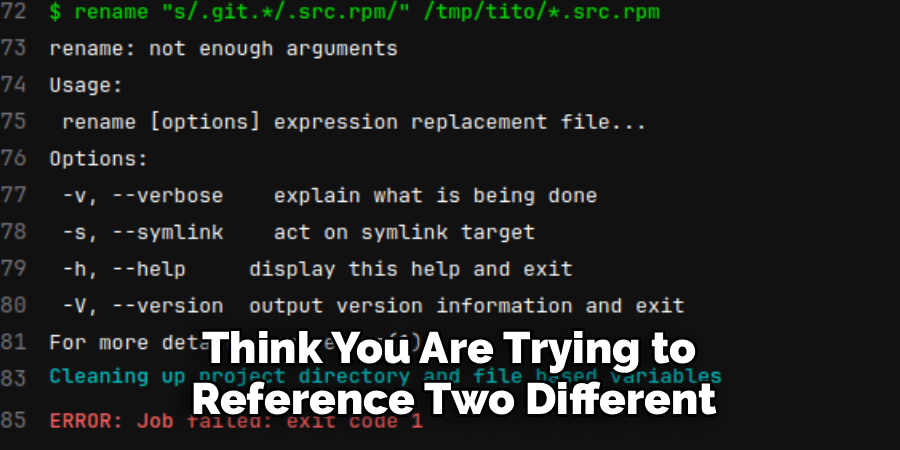
Renaming a single file is simple with mv, but what if you have hundreds of photos that need to be organized? Renaming them one by one would be tedious and time-consuming. For bulk operations, Linux offers the rename command (sometimes installed via Perl packages). This powerful utility allows you to use patterns and regular expressions to change multiple files at once.
For instance, you could change all files ending in .HTM to .html with a single line of code. The syntax typically involves defining the string you want to find and the string you want to replace it with. This capability transforms a potentially hours-long task into a three-second operation, highlighting the true efficiency of the command line environment.
Step 6: Verify the Changes with ls
After you have executed your rename command, whether it was a simple mv or a complex batch operation, trust but verify. The Linux terminal is often silent when a command succeeds; it typically only displays text if an error occurred. To confirm that your file has indeed been renamed correctly, run the ls command again. Scan the output list for your new filename.
If you used the -v (verbose) flag with your command, the system would have printed a confirmation message for each action taken. Checking your work immediately ensures that you haven’t made a typo or accidentally moved the file to a subdirectory, keeping your digital workspace organized and predictable.
Step 7: Practice Safety with Interactive Mode
As you gain confidence, you might work faster, which increases the risk of mistakes. A significant danger with the mv command is that it will silently overwrite an existing file if the new name you choose is already taken. For example, renaming draft1.txt to final.txt will destroy an existing final.txt without warning.
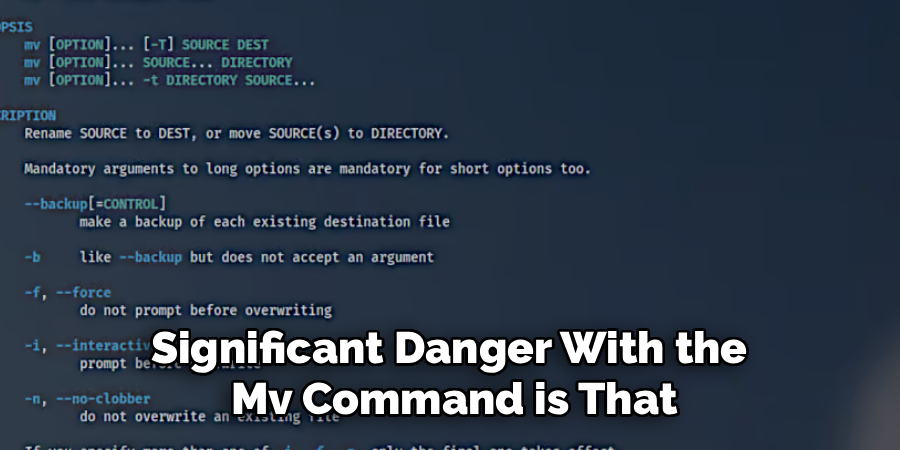
To prevent this data loss, you should use the interactive flag -i. By typing mv -i old.txt new.txt, the system will prompt you for confirmation before overwriting any existing file. This simple safety net forces you to pause and approve the destructive action, saving you from accidentally deleting critical work while you are learning the ropes of file management.
Frequently Asked Questions
What Is the Difference Between mv and rename?
The primary difference lies in their scope and complexity.
- mv (Move): This is a core utility installed on every Linux system. It is designed primarily for moving files or renaming single files. It is simple, robust, but not built for pattern matching.
- rename: This is a more advanced tool (often Perl-based) specifically designed for batch processing. It allows you to use regular expressions to rename hundreds of files simultaneously based on patterns (e.g., changing file extensions or adding dates), which mv cannot do easily.
How Do I Rename a Directory in Linux?
Interestingly, you use the exact same command! In Linux, directories are treated essentially as files. To rename a folder, you use the mv command just as you would for a document.
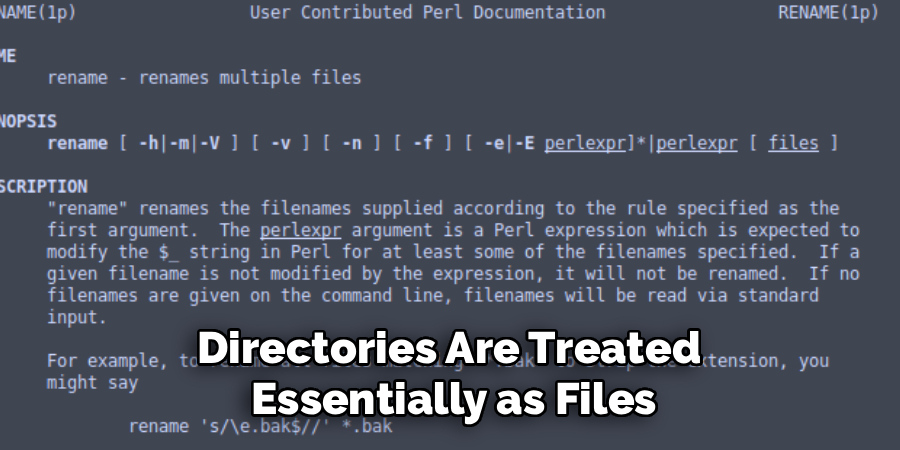
- Command: mv old_folder_name new_folder_name
- Caution: Ensure you are not currently inside the folder you are trying to rename. Navigate to the parent directory first using cd .., then run the command.
Can I Undo a Rename Operation in the Terminal?
No, standard Linux terminal commands do not have an “undo” button or a Ctrl+Z function like a word processor. Once you execute mv, the change is immediate and permanent.
- Manual Reversion: You must manually rename the file back to its original name using mv again.
- Safety First: This is why using the -i (interactive) flag or –backup option is highly recommended for beginners to prevent accidental overwrites that cannot be recovered.
Why Do I Get a “Permission Denied” Error?
This error occurs when you try to rename a file that belongs to another user (often the root user) or is in a system directory protected for security reasons.
- The Fix: You need elevated privileges. Precede your command with sudo (SuperUser DO).
- Example: sudo mv protected_file.txt new_name.txt
- Warning: Be very careful when using sudo, as you can damage your system if you rename critical configuration files.
Is There a GUI Tool for Batch Renaming?
Yes, if the terminal feels too daunting for bulk tasks, many Linux desktop environments come with powerful GUI batch renamers.
- GPRename / PyRenamer: Standalone tools you can install.
- Thunar / Dolphin: These file managers have built-in “Bulk Rename” tools. You simply select multiple files, right-click, choose “Rename,” and a dialog box appears allowing you to find and replace text, number sequences, or change extensions visually.
Conclusion
Taking control of your files is one of the first and most important milestones in your Linux journey. While the terminal may look stark and unforgiving, commands like mv are actually designed with simplicity and logic in mind. By following the steps outlined above—navigating carefully, handling spaces correctly, and utilizing batch tools for larger jobs—you move from being a passive user to an active administrator of your system.
Remember that every expert was once a beginner who worried about typing the wrong thing. With practice, these commands will become muscle memory, and you will wonder how you ever managed without the speed and precision of the command line. Now that you possess the knowledge of how to rename file linux environments proficiently, you are ready to organize, script, and manage your data with confidence.

About
Josh Stone is a distinguished figure in the world of software engineering and digital architecture, with a decade of expertise creating innovative and scalable software solutions. His professional focus lies in merging legacy system stability with modern agile development, fostering applications that are both high-performing and user-centric. As an authoritative voice in the tech space, Josh Stone delves into the art and science of clean code and systems design, inspiring developers and industry leaders alike.
Education
RMIT University (Melbourne, Australia) Associate Degree in Software Development Focus on sustainable codebases, industry-driven projects, and practical programming. Gained hands-on experience with full-stack frameworks, database management, and cloud infrastructure.
Nottingham Trent University (United Kingdom) Bachelor’s in Computer Science and Systems Design (Honors) Specialized in software architecture with a focus on blending creative UI/UX with robust backend production techniques. Participated in high-level industry projects, collaborating with global tech firms to gain real-world insights into enterprise-level deployment.
Publications and Impact
In his technical writings, Josh Stone shares his insights on agile design processes, emerging languages, and strategies for efficient DevOps. His work bridges the gap between theoretical computer science and modern industry needs, making it a must-read for both budding programmers and seasoned software architects.