

Switching to a Linux operating system can feel like stepping into a new world, especially if you are used to dragging icons to a Recycle Bin. In the Linux environment, particularly when working with servers or the terminal, file management requires a bit more precision and understanding of command-line tools.
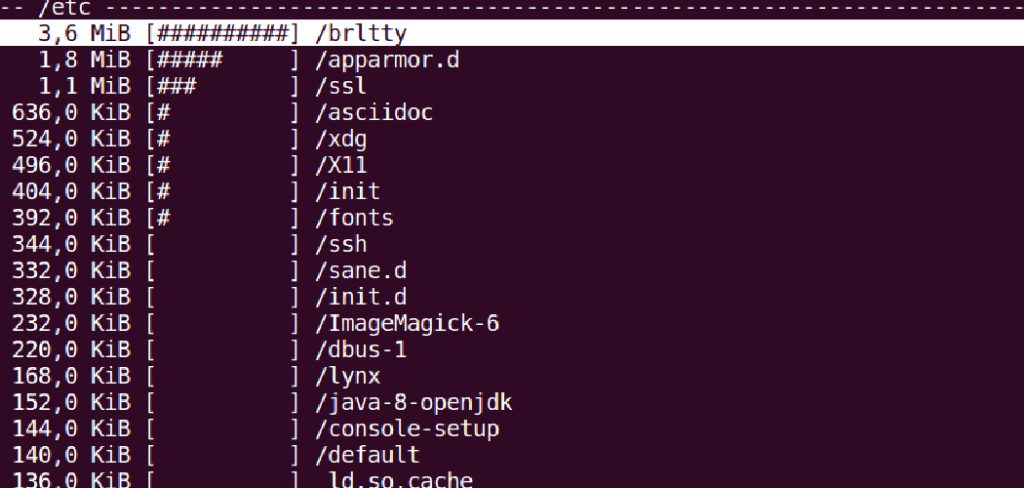
While the graphical interface offers familiar delete options, the true power of Linux lies in the terminal, where efficiency and speed are king. Learning to remove unwanted data directly via commands is a fundamental skill for any user, system administrator, or developer.
It keeps your directories organized, frees up valuable disk space, and ensures that sensitive information is properly removed. However, the command line is unforgiving; there is often no “undo” button once you press Enter. This guide is designed to replace fear with confidence. We will walk you through exactly how to delete file in linux using safe, standard practices, ensuring you can clean up your system effectively without accidentally wiping out critical data.
7 Step-by-Step Guide on How to Delete File in Linux
Step 1: Open Your Terminal Interface
The first step in managing your Linux files via the command line is accessing the terminal itself. Depending on your distribution, this might be called the Terminal, Console, or Shell. You can typically find it in your applications menu or by using a keyboard shortcut like Ctrl+Alt+T. Once the window opens, you are presented with a prompt waiting for your input.
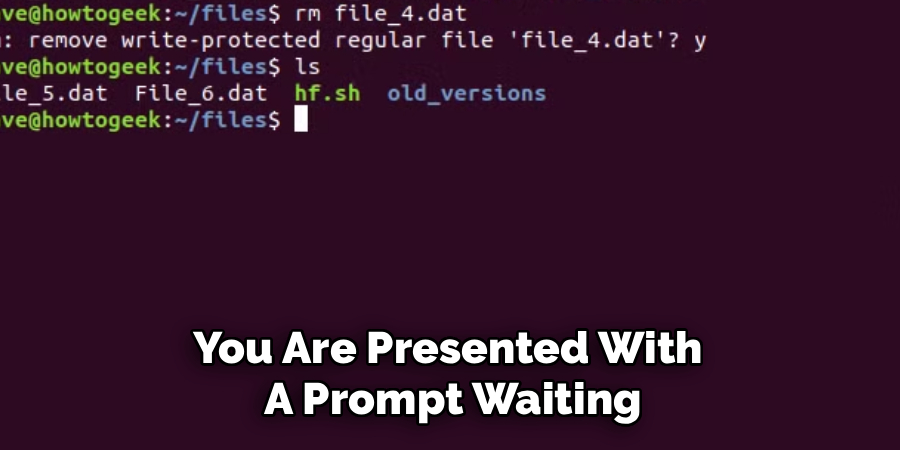
This text-based interface is the direct line of communication to your operating system’s kernel. Unlike a graphical file manager where you click on icons, here you will type specific instructions. Familiarizing yourself with this environment is crucial because it provides granular control over every aspect of the file system. Take a moment to ensure your prompt is active and ready for commands before proceeding to navigate your directories.
Step 2: Navigate to the Target Directory
Before you can remove anything, you must be in the correct location within your file system. You cannot simply delete a file if the system does not know where it is. Use the ls command to list the contents of your current folder and the cd (change directory) command to move into the specific folder containing the file you wish to remove.
For example, if your file is in the Documents folder, you would type cd Documents. Verifying your location is a critical safety habit. Running a delete command in the wrong directory could result in the loss of important system files or personal data. Always double-check your path by typing pwd (print working directory) to confirm exactly where you are in the directory tree before taking any destructive actions.
Step 3: Identify the Specific File to Remove
Once you have navigated to the correct directory, you need to pinpoint the exact file you want to eliminate. Use the ls command again to view a list of all files in the current folder. It is important to know the exact case-sensitive name of the file, including its extension (like .txt, .jpg, or .conf).
Linux distinguishes between “File.txt” and “file.txt,” treating them as completely different entities. If you have multiple files with similar names, pay close attention to avoid mistakes. You can use ls -l to see more details like file size and modification date, which helps ensure you are targeting the correct item. Precision here is key because the standard removal commands do not typically send files to a trash can; they remove the reference to the file immediately.
Step 4: Use the rm Command
Now that you are in the right place and have identified the target, you are ready to use the primary tool for removal: the rm command. This stands for “remove” and is the standard utility for deleting files in Linux. The basic syntax is simple: you type rm followed by the filename.
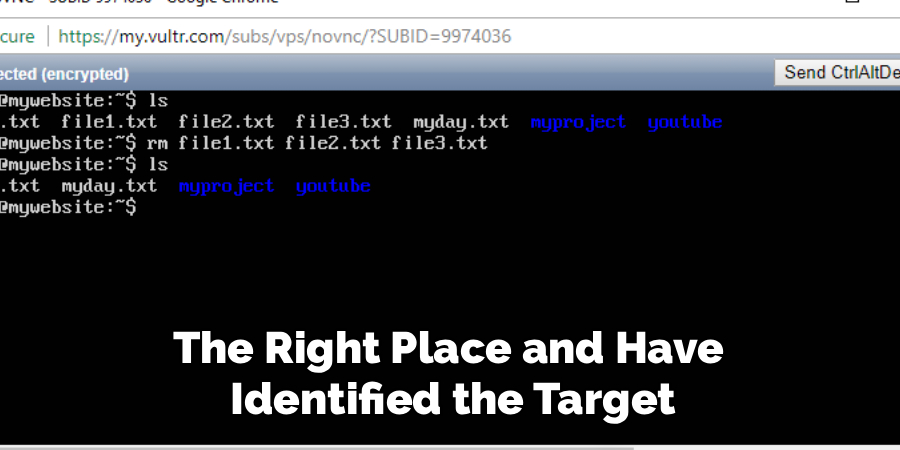
For instance, to delete a file named “report.txt”, you would type rm report.txt and press Enter. If the file is write-protected, the system might prompt you for confirmation. This command is powerful and swift. Unlike graphical interfaces that might ask “Are you sure?”, the rm command often executes silently and instantly. Understanding the permanence of this action is vital for anyone learning how to delete file in linux effectively.
Step 5: Utilize the Interactive Flag for Safety
For beginners, the silence of the rm command can be unnerving. To add a safety net, you should use the interactive flag, -i. By typing rm -i filename, you instruct the system to ask for your permission before every deletion. When you press Enter, the terminal will display a prompt asking something like “remove regular file ‘filename’?” You must then type y (for yes) or n (for no) to proceed.
This extra step acts as a fail-safe, preventing accidental deletions due to typos or momentary lapses in concentration. Even experienced administrators often use this flag when deleting multiple files or using wildcards, as it forces a moment of pause and verification before the data is permanently unlinked from the file system.
Step 6: Handling Multiple Files
Often, you will need to clean up more than just a single document. Linux allows you to remove multiple specific files simultaneously by listing them one after another, separated by spaces. For example, typing rm file1.txt file2.jpg file3.png will remove all three items in one go. You can also use wildcards, such as the asterisk symbol (*), to match patterns. Typing rm *.txt would delete every single file ending in “.txt” within the current directory.
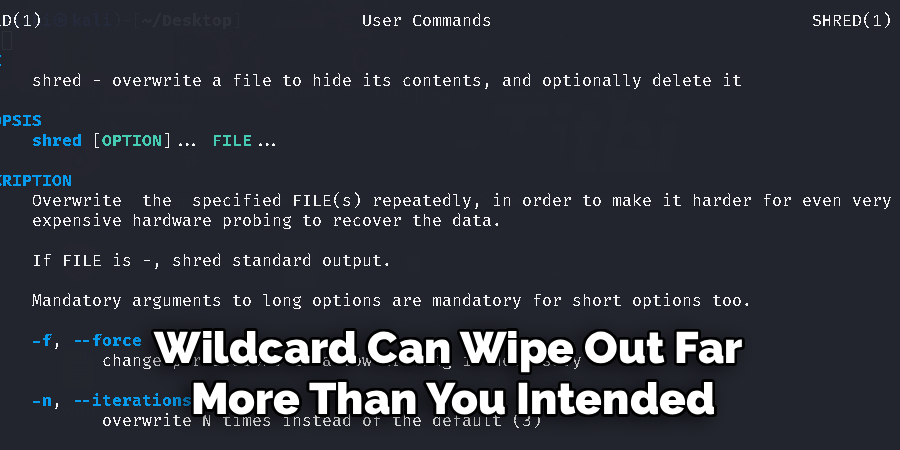
While incredibly efficient, this method requires extreme caution. A misplaced space or typo with a wildcard can wipe out far more than you intended. Using the interactive -i flag mentioned in the previous step is highly recommended when using wildcards to ensure you verify each file being removed.
Step 7: Verify the Deletion was Successful
The final step in the process is to confirm that your action had the intended effect. After running the removal command, the terminal will usually return you to a blank prompt without a success message. To verify the file is truly gone, run the ls command again. Scan the output list to ensure the filename no longer appears.
If the file is gone, you have successfully cleaned up your directory. If you receive an error message saying “Permission denied” or “Operation not permitted,” it means you may need administrative privileges (using sudo) or that the file is currently in use by another process. Always double-checking your work ensures that your system remains clean and organized exactly as you planned.
Advanced Command Line Tools
For those looking to elevate their skills beyond basic commands, advanced command line tools can significantly increase efficiency and provide more robust system management capabilities. Tools like grep, awk, and sed are invaluable for processing and manipulating text data directly from the command line.
For instance, grep allows you to search for specific patterns or keywords within files, making it a powerful instrument for log analysis or debugging. awk is a versatile tool for data extraction and reporting, while sed (stream editor) is perfect for on-the-fly text transformations.
Frequently Asked Questions
What Happens If I Delete a File by Mistake?
When you use the rm command in the terminal, the file is not moved to a Trash or Recycle Bin; it is unlinked from the file system immediately. Recovering it is difficult and often requires specialized forensic tools like testdisk or photorec. The success of recovery depends on whether that disk space has been overwritten by new data. Therefore, the best policy is always to have a current backup of your important data before performing cleanup operations.
How Do I Delete a Directory Instead of a File?
The standard rm command will give you an error if you try to use it on a folder (directory). To remove a directory and its contents, you need to add the recursive flag, -r (or -R). The command would look like rm -r directory_name. This tells Linux to go inside the folder, delete all files and subfolders, and then remove the directory itself. Be extremely careful with this command, as it can delete vast amounts of data very quickly.
What Does “Permission Denied” Mean?
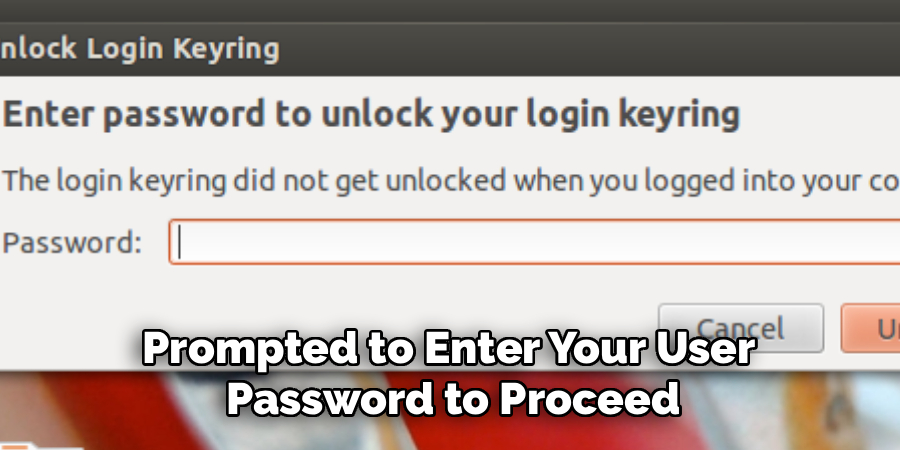
If you try to delete a file and see “Permission denied,” it means your current user account does not have the necessary rights to modify that file. This often happens with system files or files created by other users. To override this, you can use sudo before the command (e.g., sudo rm filename), which runs the command with root (administrator) privileges. You will be prompted to enter your user password to proceed.
Can I Delete a File with a Space in Its Name?
Yes, but the terminal interprets spaces as separators between commands or arguments. If you type rm my file.txt, Linux will try to delete a file named “my” and another named “file.txt”. To delete a file with spaces, you must wrap the filename in quotes, like rm “my file.txt”, or escape the space with a backslash, like rm my\ file.txt. This tells the shell to treat the name as a single entity.
Is There a Safer Alternative to rm?
Yes, for users who prefer a safety net, there are command-line utilities like trash-cli. This tool works similarly to rm but moves files to the system’s trash can instead of permanently deleting them. You can install it on most distributions (e.g., sudo apt install trash-cli on Ubuntu). Once installed, you can use the command trash filename, allowing you to restore the file later if you made a mistake.
Conclusion
Navigating the Linux command line is a journey of empowerment, transforming you from a passive user into an active administrator of your digital environment. Deleting files is a routine maintenance task, but it requires respect for the power of the terminal. By following the steps of verifying your location, identifying your targets precisely, and utilizing safety flags like interactive mode, you mitigate the risks associated with permanent data removal.
The command line offers speed and precision that graphical interfaces simply cannot match, making it an essential tool for keeping your system lean and efficient. Remember that with great power comes great responsibility; always double-check your syntax before pressing Enter. Now that you have mastered how to delete file in linux, you possess the fundamental knowledge to manage your file system with the confidence and skill of a seasoned pro.

About
Josh Stone is a distinguished figure in the world of software engineering and digital architecture, with a decade of expertise creating innovative and scalable software solutions. His professional focus lies in merging legacy system stability with modern agile development, fostering applications that are both high-performing and user-centric. As an authoritative voice in the tech space, Josh Stone delves into the art and science of clean code and systems design, inspiring developers and industry leaders alike.
Education
RMIT University (Melbourne, Australia) Associate Degree in Software Development Focus on sustainable codebases, industry-driven projects, and practical programming. Gained hands-on experience with full-stack frameworks, database management, and cloud infrastructure.
Nottingham Trent University (United Kingdom) Bachelor’s in Computer Science and Systems Design (Honors) Specialized in software architecture with a focus on blending creative UI/UX with robust backend production techniques. Participated in high-level industry projects, collaborating with global tech firms to gain real-world insights into enterprise-level deployment.
Publications and Impact
In his technical writings, Josh Stone shares his insights on agile design processes, emerging languages, and strategies for efficient DevOps. His work bridges the gap between theoretical computer science and modern industry needs, making it a must-read for both budding programmers and seasoned software architects.