

Activating your copy of Windows 10 Pro is a crucial step to unlock the full potential of your operating system. A properly activated version ensures you receive critical security updates, new features, and dedicated support from Microsoft. It also removes the persistent “Activate Windows” watermark and grants you access to personalization options, allowing you to tailor your desktop experience to your liking.
Beyond the basics, activation confirms that your software is genuine and licensed correctly, providing peace of mind and maintaining your system’s integrity. By following the proper procedures, you can enjoy a secure, stable, and fully functional computing environment. This guide on how to activation windows 10 Pro will walk you through the official process, making it simple and straightforward.
Software You Might Need
For a standard activation, you typically won’t need any special third-party software. The entire process is handled within the Windows 10 operating system itself. However, having the following items ready will ensure a smooth experience:
- A stable internet connection.
- Your 25-character Windows 10 Pro product key (if you have one).
- Access to a web browser to log in to your Microsoft account or purchase a license if needed.
- Administrative privileges on your computer to make changes to the system settings.
7 Simple Step-by-step Guidelines on How to Activation Windows 10 Pro
Step 1: Check Your Current Activation Status
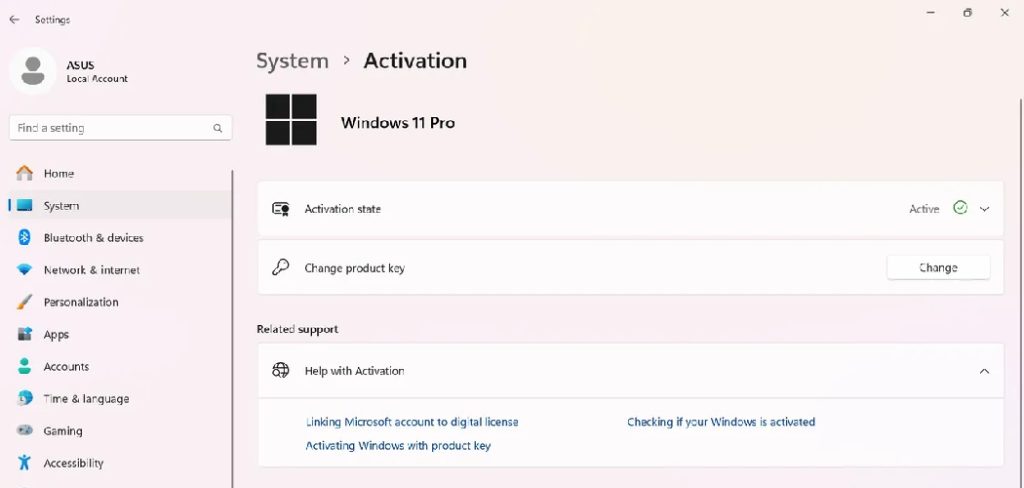
Before you begin the activation process, it’s wise to determine your system’s current status. This will tell you if Windows is already activated, if it’s in a notification state, or if it’s running on a temporary license. Knowing this baseline helps you choose the correct activation path and avoids unnecessary steps. To do this, you can easily access the activation menu through your system settings, which provides a clear and concise summary of your Windows license information.
To check your status, navigate to the Start Menu and click on the ‘Settings’ gear icon. In the Settings window, select ‘Update & Security’. From the left-hand navigation pane, click on ‘Activation’. This screen will display detailed information, including your edition of Windows (e.g., Windows 10 Pro) and its current activation state. It will clearly state “Windows is activated,” “Windows is activated with a digital license,” or “Windows is not activated.” This initial check is the foundation for all subsequent steps.
Step 2: Locate Your Product Key or Digital License
The method you use to activate Windows 10 Pro depends on how you obtained the operating system. You will either have a 25-character product key or a digital license linked to your Microsoft account. A product key is a unique code that comes with a retail copy of Windows, is often found on a sticker on your PC’s case if it came pre-installed, or is included in a confirmation email if you purchased it online. If you upgraded to Windows 10 Pro for free from a genuine copy of Windows 7 or Windows 8.1, you likely have a digital license instead.
A digital license is a modern activation method that ties your Windows entitlement directly to your computer’s hardware and, optionally, to your Microsoft account. This means you don’t need to enter a product key. If you purchased Windows 10 Pro from the Microsoft Store, the license is automatically linked to your account. Understanding whether you have a key or a digital license is critical, as the activation steps differ slightly for each. If you have a key, ensure you have it written down or accessible before proceeding.
Step 3: Access the Activation Settings
With your product key in hand or your digital license confirmed, the next step is to navigate back to the activation interface within Windows. This is the central hub where you will either input your product key or troubleshoot any activation issues. All activation-related actions are performed from this specific section of the Windows Settings menu, ensuring a centralized and user-friendly experience. Microsoft designed this to be straightforward, preventing users from having to delve into complex system files or use the Command Prompt for a standard activation.
To get there, click the ‘Start’ button, then go to ‘Settings’. In the Settings window, choose ‘Update & Security’, and then click on ‘Activation’ from the menu on the left. This is the same screen you visited in Step 1. Here, you will see options like ‘Change product key’ and ‘Troubleshoot’. If Windows is not activated, this screen will be your primary tool. Make sure you are logged in as an administrator, as standard user accounts do not have the permissions required to modify the system’s activation status.

Step 4: Enter Your Product Key
If you have a 25-character product key, this is the step where you will use it. This method is common for users who bought a retail copy of Windows 10 Pro, purchased a new PC with Windows pre-installed, or obtained a key through a volume licensing agreement. The system needs this unique code to verify that your copy of the software is authentic and has been legitimately acquired. Entering the key correctly is essential; a single typo will result in an error, so it’s best to double-check the code as you type it.
From the ‘Activation’ settings screen, click on the ‘Change product key’ link. A new window will pop up, prompting you to enter your 25-character key. Type the key exactly as it appears, including the hyphens, which the system will typically add automatically. After entering the full key, click ‘Next’. Windows will then connect to Microsoft’s activation servers to verify the key. If the key is valid and has not been used on more devices than the license allows, your system will be activated within moments.
Step 5: Activate Using a Digital License
If you are activating using a digital license, the process is often even simpler and can be automatic. A digital license is associated with your computer’s hardware profile. If you are reinstalling Windows 10 Pro on the same machine where it was previously activated, the system should reactivate automatically once you connect to the internet. Microsoft’s servers will recognize your hardware and validate your license without any action required from you. This is the most seamless activation experience available.
However, if you have made a significant hardware change, such as replacing the motherboard, Windows may not recognize your PC. In this case, you’ll need to use the Activation Troubleshooter. From the ‘Activation’ settings page, click ‘Troubleshoot’. The troubleshooter will run and attempt to identify the problem. If it detects a hardware change, it will give you an option that says, “I changed hardware on this device recently.” Clicking this will prompt you to log in with your linked Microsoft account, from which you can select your device and reactivate Windows.

Step 6: Purchase a License from the Microsoft Store
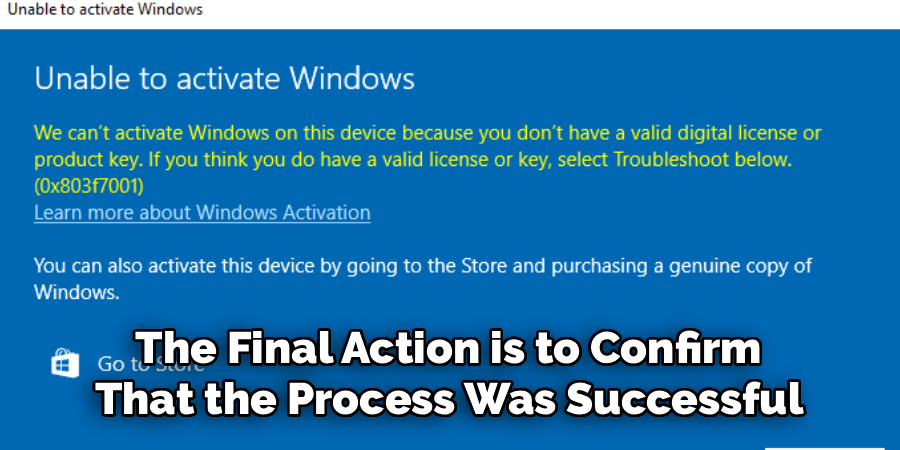
If you do not have a product key or a digital license, you must purchase one to activate Windows 10 Pro legally. This situation often arises if you installed Windows 10 Pro on a custom-built PC or upgraded from Windows 10 Home without first buying a license. Fortunately, Microsoft provides a direct and secure way to purchase a genuine license directly through the operating system itself, integrating the store for a smooth and immediate transaction. This removes the risk of buying fraudulent keys from third-party sellers.
To do this, navigate to the ‘Activation’ page in ‘Settings’. If Windows is not activated, you will see an option to ‘Go to the Store’. Clicking this will open the Microsoft Store app and take you directly to the purchase page for a Windows 10 Pro digital license. You can complete the purchase using the payment method linked to your Microsoft account. Once the transaction is complete, a digital license is automatically assigned to your device and linked to your account, and Windows will activate itself immediately.
Step 7: Verify Successful Activation
After completing the activation steps, the final action is to confirm that the process was successful. This ensures that you will have access to all features and security updates without interruption. An unactivated version of Windows will continually prompt you with notifications and place a watermark on your desktop, so confirming activation gives you peace of mind and a clean user experience. This final check is quick and easy, requiring you to return one last time to the system’s activation settings menu.
Go back to ‘Settings’ > ‘Update & Security’ > ‘Activation’. The page should now clearly display a message confirming the activation status. Typically, it will say, “Windows is activated with a digital license linked to your Microsoft account” or “Windows is activated with a digital license.” If you see this message, your work is done. Your copy of Windows 10 Pro is now genuine, fully functional, and secure. You can now proceed to customize your settings, install apps, and use your computer without any restrictions.
Following these steps on how to activation windows 10 Pro with a digital license can save you from the hassle of dealing with counterfeit software and potential security risks. It is important to always use a genuine copy of Windows for your computer to ensure that it runs smoothly and securely.
Common Mistakes to Avoid
- Purchasing cheap, non-genuine product keys from unauthorized third-party websites.
- When entering the product key incorrectly, always double-check the 25 characters.
- Attempting to use a Windows 10 Home key to activate Windows 10 Pro.
- Not connecting to the internet during the activation process.
- Ignoring the Activation Troubleshooter after a major hardware change, such as a motherboard replacement.
Do You Need To Use a Professional Hacker?
Absolutely not. There is no legitimate reason to involve a “professional hacker” or use illegal activation tools like KMS activators or software cracks. These methods are not only unlawful but also pose a massive security risk to your computer. Illicit activation tools often come bundled with malware, spyware, or viruses that can steal your personal information, damage your system files, or enlist your computer into a botnet.
Using such tools violates Microsoft’s terms of service and can lead to an unstable and unreliable system that is blocked from receiving critical security updates, leaving you vulnerable to cyberattacks.
How Much Will It Cost If You Purchase the Software?
The cost of a legitimate Windows 10 Pro license varies, but you should expect to purchase it directly from a reputable source at full price. As of early 2026, purchasing a digital license for Windows 10 Pro directly from the Microsoft Store typically costs around $199.99. While you might find retailers selling it for slightly less, significantly lower prices are a major red flag and often indicate a fraudulent or illegitimate key.
These could be volume license keys resold illegally or keys generated with software. Investing in a genuine license ensures you receive support, updates, and peace of mind.
Frequently Asked Questions
Can I Use a Windows 7 or 8 Key to Activate Windows 10 Pro?
Initially, during the free upgrade period that ended in 2016, you could use a genuine Windows 7 Professional/Ultimate or Windows 8/8.1 Pro key to activate Windows 10 Pro. While the official free upgrade offer has expired, this method sometimes still works for users performing a clean installation. However, it is not officially supported or guaranteed by Microsoft. The most reliable method is to use a key specifically designated for Windows 10 or to purchase a new digital license.
What Happens If I Don’t Activate Windows 10 Pro?
If you choose not to activate Windows 10 Pro, your operating system will remain functional for basic tasks but with several significant restrictions. A persistent “Activate Windows” watermark will be displayed in the bottom-right corner of your screen. You will also be unable to access most personalization settings, including changing your wallpaper, colors, lock screen, and themes. Most importantly, you may not receive all security updates, which could leave your system vulnerable over time.
How Can I Tell If My Product Key Is Genuine?
A genuine product key is typically purchased directly from Microsoft or an authorized retailer at the standard retail price. Keys sold for drastically reduced prices on auction sites or obscure online stores are almost always illegitimate. These keys are often sourced from volume licensing agreements, educational programs, or are simply fake. If a deal seems too good to be true, it probably is. Sticking to official channels is the only way to guarantee you are receiving a legitimate, fully licensed product.
Conclusion
Activating Windows 10 Pro is a fundamental step in setting up your computer for security, stability, and full functionality. By following the straightforward guidelines on how to activation windows 10 Pro outlined above, you can ensure your operating system is genuine and properly licensed. Whether you are using a product key, relying on a digital license, or purchasing a new one from the Microsoft Store, the process is designed to be user-friendly.
Avoiding the pitfalls of illegitimate keys and activation tools is crucial for protecting your data and your device. Ultimately, a properly activated copy of Windows 10 Pro provides a seamless and secure experience, giving you access to every feature the powerful operating system has to offer.
